

Introduction
In today’s fast-paced world, staying organized is crucial. Whether you’re managing work projects, personal tasks, or both, a to-do list can be your best friend. Excel offers a versatile platform for creating and managing these lists, and with checkboxes, it becomes even more effective. Let’s explore how you can set up an Excel to-do list template, complete with checkboxes, for free.
Benefits of an Excel To-Do List Template
Flexibility and Customization
Excel’s flexibility allows you to create a to-do list that suits your specific needs. You can add, remove, and modify tasks easily, ensuring your list evolves with your requirements.
Ease of Use
Excel is user-friendly, and most people are already familiar with its basic functions. This makes it an ideal tool for managing your tasks without a steep learning curve.
Enhanced Productivity
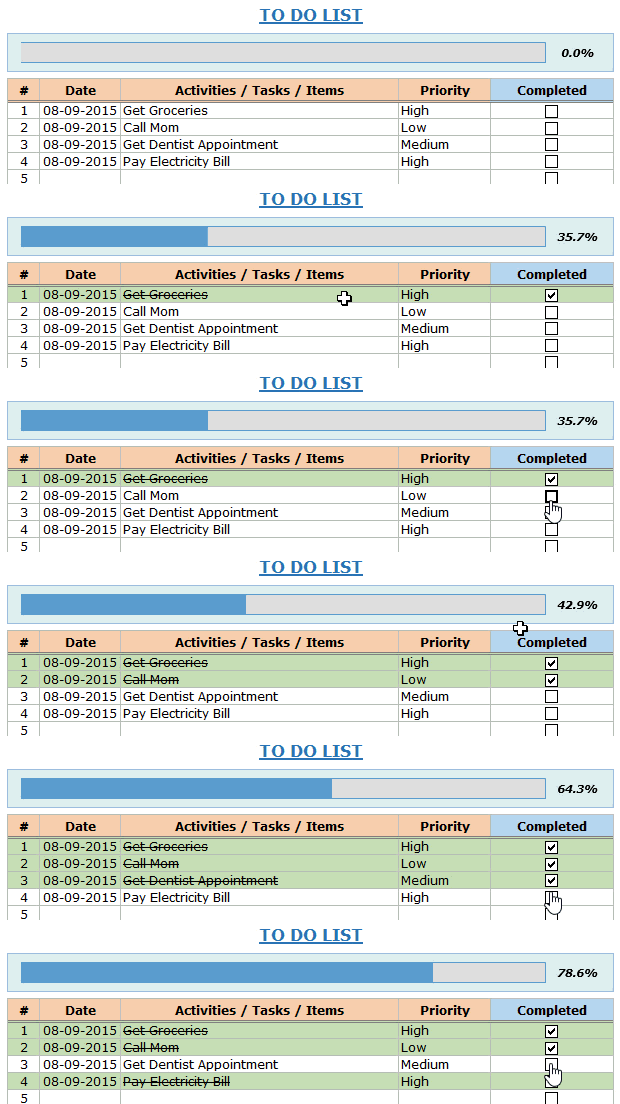
By using an Excel to-do list template, you can keep track of your tasks more efficiently. The addition of checkboxes helps you visually track your progress and stay motivated.
Setting Up Your Excel To-Do List
Downloading the Template
To get started, download a free Excel to-do list template. You can find many templates online, but make sure to choose one that includes checkboxes for maximum efficiency.
Basic Setup Instructions
Once you’ve downloaded the template, open it in Excel. Familiarize yourself with the layout and structure. You’ll typically see columns for tasks, checkboxes, deadlines, and priorities.
Adding Tasks to Your List
Inserting Tasks
Start by entering your tasks into the designated column. Keep your task descriptions clear and concise to avoid confusion later.
Adding Check Boxes
To add checkboxes, go to the “Developer” tab. If it’s not visible, you’ll need to enable it through Excel’s options. In the Developer tab, select “Insert” and choose “Check Box”. Place a checkbox next to each task.
Categorizing Tasks
For better organization, you can categorize your tasks. Add a column for categories and label each task accordingly (e.g., Work, Personal, Errands).
Customizing Your Template
Personalizing the Design
Make your to-do list visually appealing by customizing the design. Change fonts, colors, and cell styles to suit your preferences.
Adding Deadlines and Priorities
Include columns for deadlines and priorities. This helps you manage your time more effectively and ensures important tasks are addressed promptly.
Using Conditional Formatting
Use conditional formatting to highlight critical tasks or approaching deadlines. This feature allows you to automatically change cell colors based on certain conditions.
Advanced Features
Tracking Progress with Formulas
Use Excel formulas to track your progress. For example, you can use =COUNTIF(B:B, TRUE) to count completed tasks if you use checkboxes.
Automating Repetitive Tasks
Excel macros can help automate repetitive tasks. For instance, you can create a macro to automatically sort tasks by priority or deadline.
Integrating with Other Tools
Excel can be integrated with other tools such as Outlook for reminders or Trello for project management. This enhances your productivity by centralizing your tasks.
Sharing and Collaboration
Sharing Your To-Do List
Share your Excel to-do list by saving it to a cloud service like OneDrive or Google Drive. This allows you to access it from any device and share it with others easily.
Collaborating with Team Members
If you work in a team, Excel Online or Google Sheets can facilitate real-time collaboration. This ensures everyone is on the same page and updates are instantaneous.
Managing Permissions
When sharing your list, set appropriate permissions to control who can view or edit the document. This helps maintain the integrity of your task management system.
Tips for Effective To-Do List Management
Best Practices
Review and update your list regularly. Break down large tasks into smaller, manageable steps. This keeps your list relevant and manageable.
Common Mistakes to Avoid
Avoid overloading your list with too many tasks. Focus on what’s most important and be realistic about what you can achieve in a day.
Efficiency Tips
Learn Excel shortcuts to speed up your workflow. For example, Ctrl+C and Ctrl+V for copy and paste, and Ctrl+Z for undo. These can save you a lot of time.
Conclusion
An Excel to-do list template with checkboxes is a powerful tool for staying organized and boosting productivity. It’s flexible, easy to use, and can be customized to fit your specific needs. Download a template today and start taking control of your tasks.